New Laptop Setup Checklist: What to Do Before You Start Using It
Bought a laptop in the November sales? The first hour of setup decides how well it runs for the next five years.
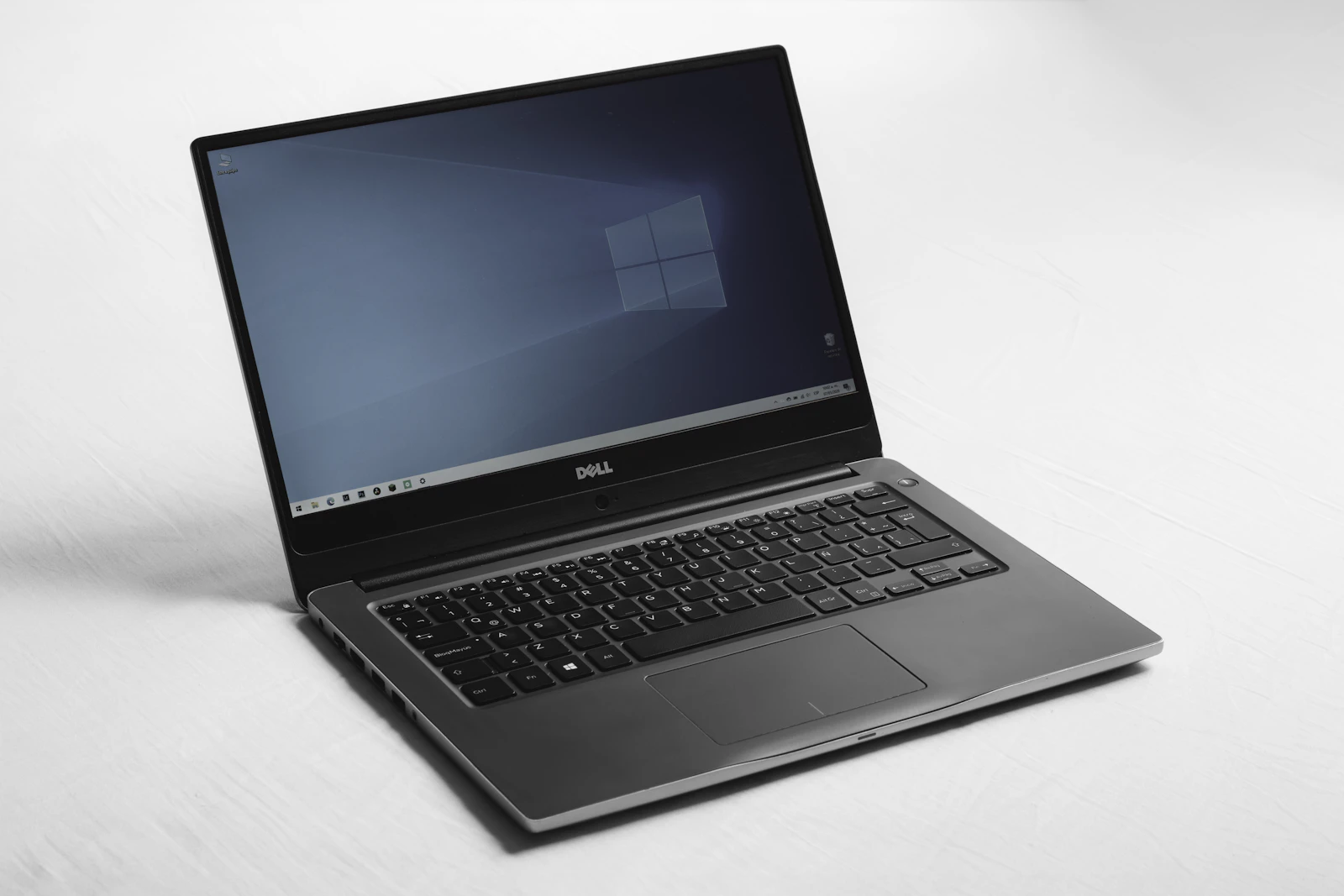
Before using a new laptop, check the warranty and keyboard layout, choose the right account at first start, install every update, confirm where the encryption recovery key is saved, remove software you do not want, move your files across from the old laptop, set up backup, and only then wipe the old one before selling or passing it on.
Key takeaways
- Check the warranty is valid in the UAE and the keyboard layout is the one you want before you open everything.
- Choose the sign-in account carefully at first start; it decides where your files and recovery key are saved.
- Install all updates on day one, before installing your own programs.
- Move data with Windows Backup, OneDrive or Apple's Migration Assistant, then check it all arrived.
- Wipe the old laptop properly before selling it, because deleted files can be recovered.
Before you open everything: warranty, keyboard and plug
The November sales, whether a retailer calls them Black Friday, White Friday or something else, are when a lot of laptops change hands in the UAE. A few checks in the first minutes can save trouble later, and some are easier before the packaging goes in the bin.
Check the warranty first. Laptops sold in the UAE through official channels normally carry a local warranty, but a laptop imported from another market, or sold through some marketplace sellers, may only be covered in its country of origin. The box, the receipt or the manufacturer's website should say where the warranty is valid. Register the laptop with the manufacturer if they offer it.
Then check the keyboard. Laptops here are sold with English-only keyboards and with English and Arabic layouts, and the difference is printed on the keys, not something software can change. Make sure you got the one you wanted. Most UAE sockets take the three-pin British-style plug, so a laptop bought from abroad may need an adapter or a local power cable for the charger.
First start: choosing the right account
The first-start screens ask questions that are hard to change later, so slow down here. On Windows, the most important is the account. A personal laptop is usually best set up with your Microsoft account, which saves your settings, links OneDrive and, on many laptops, stores the drive's encryption recovery key. A laptop for work should be set up with the work account your employer gives you, not a personal one.
Use a strong password and set up a PIN or fingerprint for daily sign-in. Read the privacy screens instead of clicking through them; you can switch off advertising and diagnostic options you do not want. On a Mac, sign in with your Apple ID so iCloud, Find My and backup work from the start.
Updates first, then your own software
A laptop that sat in a warehouse for months is behind on updates the moment you open it. Before installing anything of your own, run Windows Update, or Software Update on a Mac, and keep running it until nothing is left, which often takes several rounds and restarts. Then check the manufacturer's own update app for firmware and drivers.
Doing this first matters because updates fix security problems and driver issues that cause odd behaviour later. It also means any firmware update happens now, while you can still find your recovery key easily, instead of months later at a bad moment.
Find and save your encryption recovery key
Many new Windows laptops encrypt their drive automatically when you sign in with a Microsoft account, a feature Microsoft calls device encryption. It protects your data if the laptop is stolen, but if the laptop ever asks for the recovery key and you cannot find it, the data is lost.
Today, while everything works, sign in to your Microsoft account from another device and confirm the recovery key for the new laptop is listed. Keep a second copy somewhere safe, such as a password manager or a printout filed with the receipt. Our guide to the BitLocker recovery key screen explains why this matters and where keys are usually kept.
Remove what you do not need, keep what protects you
New laptops often arrive with trial software, games and the manufacturer's extras. Remove what you will not use from the apps list in Settings; it frees space and reduces clutter and pop-ups. Keep the manufacturer's update tool, because it delivers firmware and driver fixes.
Be careful with security software. Windows includes built-in protection that is enough for most people when it is kept on and updated. A trial antivirus that came with the laptop will start nagging you to pay once the trial ends, and running two antivirus programs at once slows a laptop down and can cause conflicts. Pick one and remove the other.
Move your files from the old laptop
Plan the move before you start, and check what actually needs to come across: documents, photos, the desktop, browser bookmarks and saved passwords, email if it is stored locally, and any program that needs its licence moved. Programs themselves are reinstalled fresh on the new laptop, not copied.
There are three common routes. Windows has a built-in tool, which Microsoft describes in its guide to Windows Backup, that saves files, settings and the app list to your Microsoft account so the new laptop can pick them up. Files already in OneDrive or another cloud service simply appear once you sign in. For Mac to Mac, Apple's Migration Assistant copies accounts, files and settings across in one go.
Whichever route you use, check the result before going further. Open a few documents, look at the photo folders, and make sure bookmarks and passwords arrived. It is much easier to fix a gap while the old laptop still holds everything.
Set up backup from day one
A new laptop is the easiest moment to start a backup habit, because there is nothing to sort out yet. The simplest approach for most people is to keep documents, desktop and photos in a cloud service such as OneDrive or iCloud, and add an external drive backup on top, using Windows Backup or File History on Windows, or Time Machine on a Mac.
Check it once it has run: open the backup, find a file, and restore it somewhere to make sure it works. A backup that has never been restored is only a hope. Our article on backup that actually restores explains the principle in more detail.
Wipe the old laptop properly before selling it
Only wipe the old laptop once you are sure everything has arrived on the new one. Then sign out of every account on it, including your Microsoft account or Apple ID, iCloud and Find My, browsers and any work apps, because some laptops stay linked to an account even after a reset.
Deleting files is not enough, since deleted files can be recovered by the next owner. Use the full reset that cleans the drive on Windows, or erase the Mac, as described on our data recovery and secure wipe page. Remove the laptop from your Microsoft or Apple device list afterwards, so it no longer appears as yours.
How Listonics helps with a new laptop
If you would rather not spend an evening on it, Listonics engineers set up new laptops at homes and offices across Dubai: account and updates, encryption key saved, unwanted software removed, files and settings moved from the old laptop and checked, backup set up and tested, and the old laptop wiped and signed out. See our home IT support page for home setups. For offices onboarding staff, the workplace IT setup service covers it at scale, and our guide to new employee laptop setup explains the business version. To book, tell us which laptops are involved.
Frequently asked questions
Check the warranty and keyboard layout, then start it and sign in with the right account: your Microsoft account or Apple ID for a personal laptop, your work account for a work one. Next, install every available update before installing your own programs. After that, confirm where the encryption recovery key is saved and set up backup.
For most personal laptops, a Microsoft account is the better choice: it syncs settings, links OneDrive, helps you find a lost laptop, and on many laptops stores the drive's encryption recovery key. A local account keeps things on the laptop only, which some people prefer, but then you must save the recovery key yourself.
On Windows, use Windows Backup on the old laptop to save files, settings and the app list to your Microsoft account, then sign in on the new one. Files in OneDrive or other cloud storage appear automatically. Between Macs, use Apple's Migration Assistant. Programs are reinstalled fresh, and you should check everything arrived before wiping the old laptop.
For most home users, no. Windows includes built-in protection that is enough when it is kept switched on and updated. Trial antivirus that comes pre-installed will ask you to pay when the trial ends; either buy it deliberately or remove it, but do not run two antivirus programs at the same time.
It depends on where and from whom. Laptops sold in the UAE through official channels usually carry a local warranty, while imported stock may only be covered in its original country. Check the receipt, the box and the manufacturer's website, and register the laptop with the manufacturer if they offer registration.
First confirm everything is on the new laptop. Then sign out of every account, including your Microsoft account or Apple ID and Find My. On Windows, reset the PC and choose the option to clean the drive; on a Mac, use the erase function. Simply deleting files is not enough, because they can be recovered.
Written by Srinivasan Ramachandran, Founder, Listonics · Published Nov 06, 2026 · Last reviewed November 6, 2026 · 1554 words