Office Wi-Fi Keeps Dropping? How to Find What Is Actually Disconnecting
A network that drops for thirty seconds and comes back is harder to diagnose than one that is simply slow: it has fixed itself before anyone looks.
Part of our guide to Office Network & Wi-Fi.
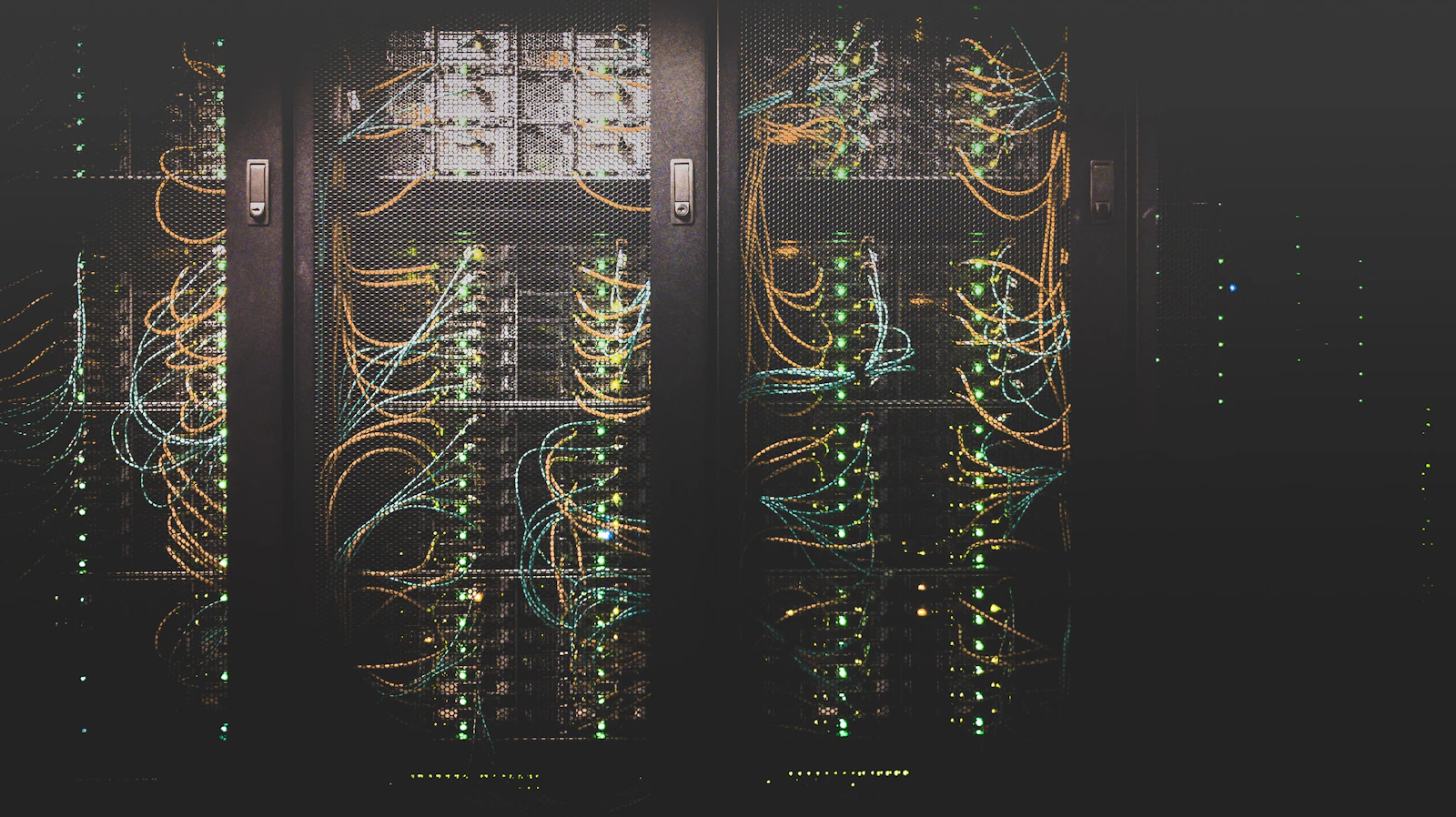
Work from the outside in. Check whether one device drops or everybody does, whether wired users are affected as well as wireless, and whether it happens at a particular time. Those three answers separate a Wi-Fi roaming fault from a DHCP, switch or internet line problem.
Key takeaways
- Dropping and slow are different faults. Fixes for one rarely help the other.
- If wired users drop too, the problem is not Wi-Fi, no matter how it looks.
- A whole office dropping at once points at DHCP, the firewall or the line, not access points.
- Timing is evidence. Same hour each day usually means capacity, a lease expiry or a scheduled task.
- Replacing hardware before isolating the layer is the most expensive way to guess.
Why is dropping a different problem from slow?
Slow is continuous, so you can measure it whenever you like. Dropping is intermittent, which means the fault has usually cleared by the time anyone investigates, and the only evidence left is a complaint. That difference matters, because the causes barely overlap.
Slow office Wi-Fi is normally a capacity or coverage problem: too few access points, too much interference, or a contended internet line. Our guide to slow office Wi-Fi covers that in detail. Dropping is usually a state problem: something loses a lease, a session, a link or a channel, and has to re-establish it. How devices hand over between access points is part of the certification described by the Wi-Fi Alliance.
So the first job is not to fix anything. It is to work out which layer is failing, because a new access point will not help a network whose address pool has run out.
How do you tell which layer is dropping?
Three questions separate most cases, and they can be answered by anyone in the office without any tools. Ask them before touching equipment.
First, does it affect one person or everyone? A single laptop dropping while colleagues stay connected is a client problem: a driver, a power-saving setting, or a device that will not let go of a distant access point. Everyone dropping together is infrastructure.
Second, do wired users drop as well? This one question eliminates half the possibilities in seconds. If a desktop on a cable loses connection at the same moment as the laptops, the wireless is not at fault, however much it looks that way to the people affected.
Third, when does it happen? A drop at the same time each day is almost never random. It points to a capacity peak, a lease expiry, a backup job saturating the line, or a scheduled reboot nobody documented.
- One device only: client driver, power management, or a sticky Wi-Fi connection.
- Everyone wireless, wired unaffected: access points, channels, roaming or wireless capacity.
- Wireless and wired together: DHCP, switching, firewall or the internet line.
- Only at a specific time: capacity, a scheduled job, or a lease or session expiry.
What makes devices drop off Wi-Fi specifically?
When only wireless users are affected, a small number of causes account for most cases in a typical Dubai office fit-out.
Roaming is the most common and the least understood. As someone walks from a meeting room back to their desk, their device has to hand over between access points. Devices decide this for themselves, and many hold on to a weak distant access point long after a closer one would serve them better, which shows up as a call dropping halfway down a corridor. Access points placed for tidiness rather than coverage make this much worse.
Channel changes are the second. Some Wi-Fi channels must yield to radar, and when that is detected the access point moves channel and every client reconnects. In a dense tower with many neighbouring networks this can happen repeatedly.
- Devices clinging to a distant access point instead of handing over cleanly.
- Access points placed in corridors or above ceiling obstructions rather than where people sit.
- Radar detection forcing a channel change and disconnecting everyone on it.
- An old router or range extender still broadcasting the same network name.
- Laptop power-saving settings switching the adapter off to conserve battery.
What makes the wired network drop?
If desktops drop too, the fault is in the shared infrastructure, and there are a handful of usual suspects.
Running out of addresses is the one that catches growing offices. A network configured for a small team keeps a limited pool of addresses, each leased for a set period. Add phones, tablets, guests, printers and visitors and the pool empties, at which point new devices simply cannot join and existing ones fail when their lease expires. The symptom looks random because it depends who walks in that morning.
Power budgets cause a similar surprise. Access points and phones are usually powered over the network cable from the switch, and every switch has a total power budget. Add devices past it and the switch starts shedding them.
Then there is the physical layer: a patch lead half-seated in a panel, a cable run beside a fluorescent fitting, or a link that negotiated the wrong speed. These produce errors the switch counts for you, which is why the counters are worth reading before anything is replaced.
| What people report | Likely cause | How to confirm |
|---|---|---|
| Drops when walking between rooms | Roaming between access points | Check whether it happens standing still |
| New devices cannot join, existing ones fine | Address pool exhausted | Check DHCP scope usage on the router |
| Everything drops together, briefly | Firewall, switch or internet line | Check whether wired users dropped too |
| One phone or access point offline | Switch power budget exceeded | Check PoE budget and per-port draw |
| Same time every day | Capacity, backup job or scheduled reboot | Compare against the backup and task schedule |
Is it the firewall or the internet line?
When the whole office loses connectivity at once and comes back unaided, attention usually turns to the internet provider. Sometimes that is right, but the firewall is worth ruling out first because it is the one piece you control.
Firewalls track every connection passing through them, and the table for doing so is finite. An office that has outgrown its firewall, or one device making a very large number of connections, can fill it, at which point new connections fail until entries age out. It recovers by itself, which is why it gets blamed on the line.
For the line itself, the useful evidence is whether the drop is logged by the router as the connection going down, or whether the connection stayed up while traffic stopped. Those point in opposite directions. Keeping a simple log of date, time and duration for a week turns an argument with a provider into a conversation about a pattern.
If you are on a business line with a service commitment, that log is also what you need to claim against it.
How do you know whether to fix or upgrade?
Not every dropping network needs replacing, and the honest answer is often that a configuration change or a repositioned access point resolves it for the cost of an afternoon.
The case for repair is strong when the symptoms trace to something specific and bounded: one failing cable, an address pool that needs enlarging, an old router still broadcasting, a power budget exceeded by two devices. Fix the cause and the network is genuinely fine.
The case for upgrade builds when the equipment cannot meet what the office now is: consumer routers serving a doubled team, unmanaged switches with no counters so nothing can be diagnosed, access points placed for an earlier floor plan, no way to separate guest traffic from staff. There, each fix holds for a while and the next symptom appears elsewhere.
A network health check gives you that answer as evidence rather than opinion, and either outcome is a legitimate result.
- Repair: a specific, bounded cause you can name and confirm.
- Upgrade: recurring symptoms in different places, on equipment sized for a smaller office.
- Either way, insist on the evidence before the quote.
What should you record before calling anyone?
Intermittent faults are diagnosed from patterns, and the pattern lives with the people experiencing it rather than in the comms room. A week of notes will shorten the work and reduce what you pay for it.
Ask staff to note four things each time: the date and time, who was affected, whether they were on cable or Wi-Fi, and roughly how long it lasted. That is enough to distinguish a roaming problem from a lease expiry from a line fault without anyone logging into anything.
It is also worth photographing the comms rack and noting what is plugged in where. A surprising number of intermittent faults trace back to equipment left by a previous provider that nobody has documentation for.
What evidence can a non-technical office manager gather before calling anyone?
You do not need to be technical to collect the evidence that makes an intermittent fault diagnosable. You need a few habits, a phone, and the willingness to write things down at the moment they happen rather than an hour later. Engineers can work wonders with good evidence and very little with a report that says it was slow again yesterday.
Keep the log described earlier, and add two things to it. First, a speed test result taken on a laptop that is cabled, not on Wi-Fi, at the moment of the problem and again when things are normal, so the line's behaviour and the Wi-Fi's behaviour can be told apart. Second, a photograph of the comms cabinet's lights when the problem is happening: a firewall's internet light that has gone amber, a switch port flashing furiously where it should be steady, a power light off on the one access point that covers the meeting rooms. Photographs carry timestamps and remove arguments about what was seen.
If the office has a managed firewall or router with a status page, ask your provider once how to open it and what the internet line's status looks like when it is healthy, then screenshot it during a fault. A free Wi-Fi analyser app on a phone, walked slowly around the floor, shows where the signal drops away and which neighbouring networks crowd yours, which is often enough to explain a dead meeting room. None of this fixes anything, and it is not meant to. It turns the engineer's first hour from finding out what happened into fixing it. If the line itself is suspect, both du and e& publish business support routes and service commitments.
- A cabled speed test during the fault and another when things are normal.
- Timestamped photographs of the comms cabinet lights while it is happening.
- A screenshot of the firewall or router status page, if the provider has shown you where it is.
- A slow walk with a Wi-Fi analyser app to see where signal drops and who crowds the channel.
- All of it in the same log as the times, people and durations.
How Listonics helps with office network troubleshooting
We start with the evidence rather than the equipment: switch error counters and power budget, address pool usage and lease times, firewall session counts, and whatever pattern your staff recorded. Most intermittent faults are identifiable from that alone.
Where the wireless is genuinely at fault, we survey the floor as it is now, with the furniture and partitions in place, rather than working from the plan the access points were installed against. The output is a written finding: what is causing it, what fixes it, and whether that is a configuration change, a physical change or new equipment.
You get the findings and the documentation whichever way it goes, with no obligation to have us do the work. To have your network looked at properly, a free office IT assessment covers it; our network and Wi-Fi page explains the ongoing side.
Frequently asked questions
Meeting rooms are often at the edge of coverage, behind glass partitions or solid walls that weaken the signal. Devices frequently hold on to the access point nearest the desks rather than handing over. Adding or repositioning an access point for that room usually resolves it, which a survey with the furniture in place will confirm.
A simultaneous drop points at something shared rather than at Wi-Fi: the firewall, the switch, the address pool, or the internet line. The quickest test is whether people on cables lost connection too. If they did, the wireless is not the cause however much it appears to be.
Yes, and it is common. A patch lead that is half-seated, damaged, or routed alongside electrical cabling produces errors that come and go with movement or temperature. Managed switches count these errors per port, so the fault can usually be located without testing every cable in the office.
Usually not. Dropping is normally caused by handover between access points, an exhausted address pool, a power budget or a line fault, and none of those improve with more transmit power. Replacing hardware before identifying the layer that is failing is the most expensive way to guess.
About a week is enough to show a pattern, and often less. Record the date and time, who was affected, whether they were wired or wireless, and how long it lasted. That alone frequently identifies the cause, and it shortens the diagnostic work you pay for.
Neighbouring networks cause slowness more often than disconnection, though they contribute when channels overlap heavily. Genuine disconnections are more commonly caused by a channel change after radar detection, or by an old router in your own office still broadcasting the same network name.
The one taken on a cabled laptop at the moment of the problem, compared with one taken when things are normal. A Wi-Fi speed test mixes the line and the wireless together and cannot tell you which is failing. Note the upload and the latency as well as the download; video calls suffer on those first.
Written by Srinivasan Ramachandran, Founder, Listonics · Published Sep 20, 2026 · Last reviewed October 24, 2026 · 2248 words