Guest Wi-Fi Security Best Practices for Dubai Offices
Visitor Wi-Fi should give guests internet access without a route into staff devices or business systems. Practical steps for a 10 to 40 person office.
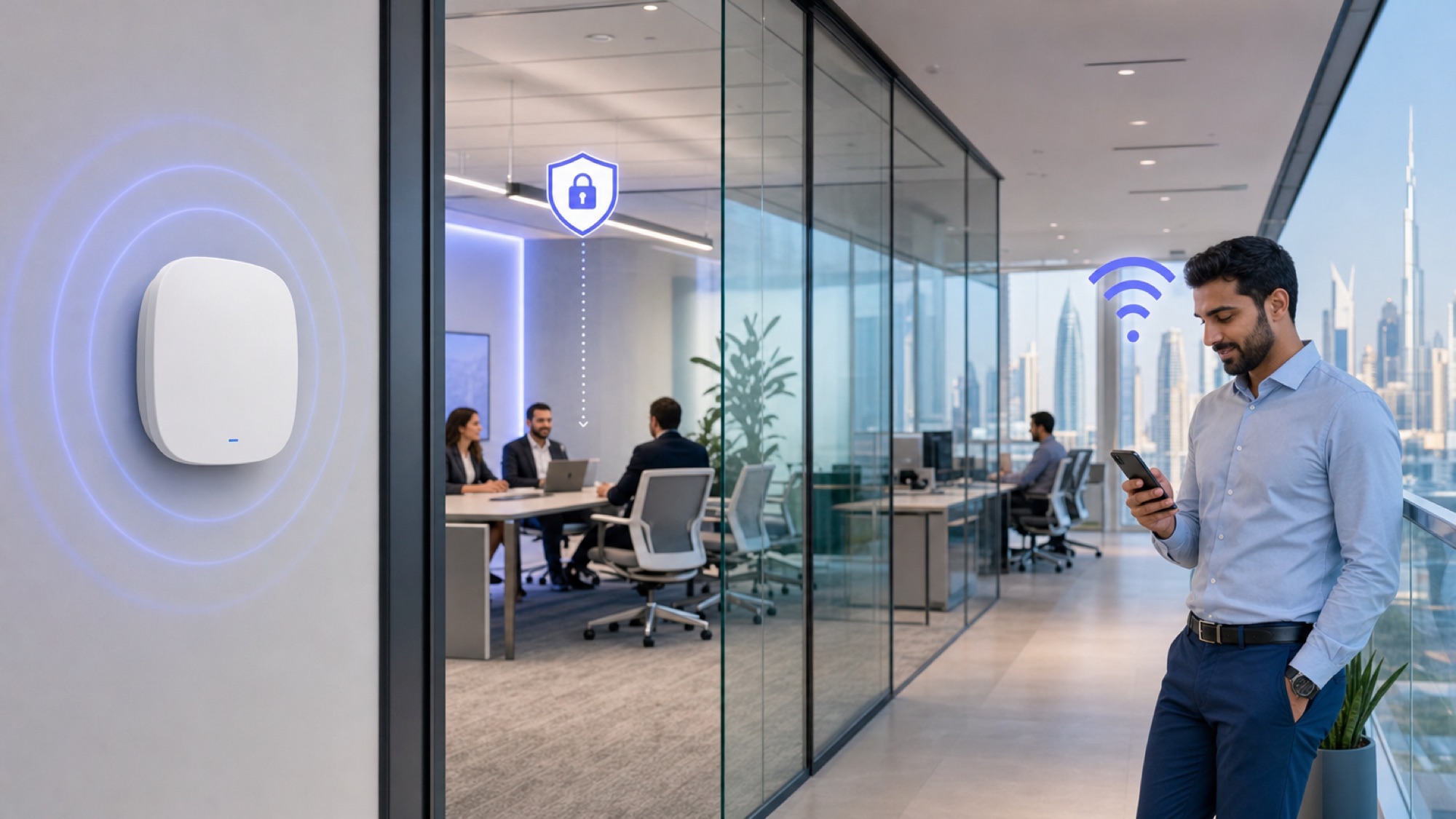
For a 10 to 40 person office, visitor Wi-Fi should give guests convenient internet access without giving their phones or laptops a route into staff devices and business systems. These guest wifi security best practices cover the practical steps: configure a separate guest network, restrict its access, maintain the equipment and test the result. Exact menu names vary by router, firewall and access-point brand, so check the equipment documentation before changing settings.
What a secure guest network should do
A guest network is a separate access path for visitors, contractors and other people who do not need access to office systems. Its main purpose is to provide internet access while blocking access to staff laptops, servers, printers, cameras, network storage and equipment management interfaces.
A guest Wi-Fi name, or SSID, does not by itself create that separation. The access point may broadcast a separate network name while still placing guest devices on the same internal network as staff devices. Proper isolation depends on how the access point, router or firewall is configured. If the guest network uses a separate VLAN, the firewall rules must also correctly restrict traffic between that VLAN and the internal network.
For many small Dubai offices, the router or firewall and managed access points already support a guest-network feature. It can be a practical option when configured to block access to the local network and permit only the services guests need, usually internet access and basic network address assignment. Check what the feature actually does on your equipment rather than relying on its name.
For more control, an IT provider or network administrator can configure a separate guest VLAN and firewall policy. Avoid creating a VLAN without the corresponding rules: a VLAN separates network traffic at one layer, but it does not automatically decide which other networks that traffic can reach. A broader network security review for small businesses in Dubai can help you check that these controls hold together.
Set up guest Wi-Fi step by step
- Check your equipment and current network. Identify the router or firewall and access points, and confirm that they support a guest network or separate VLANs. Note the staff network, important internal devices and any existing rules before changing the configuration. If the network is centrally managed, coordinate changes with the person responsible for it.
- Create a distinct guest network. Give visitors a clear network name that is different from the staff Wi-Fi. Use the equipment's guest-network feature if it provides the isolation and access controls you need. If using a VLAN, assign the guest SSID to the correct VLAN and configure firewall rules to block access to internal networks. Do not assume the separate SSID or VLAN alone is enough.
- Set a suitable security method. Use WPA3-Personal where supported by your equipment and visitors' devices, or WPA2-Personal with AES where compatibility requires it. If the equipment offers a properly configured enterprise authentication option, that may suit some offices, but it requires appropriate setup and management. Avoid WEP, TKIP and an unencrypted open network for ordinary office guest access.
- Choose how guests will authenticate. For a small office, a strong, unique guest passphrase may be simple to administer. Do not reuse the staff Wi-Fi password or a password used for any other service. A managed captive portal can provide a guest sign-in process, but it is not a substitute for encryption or network isolation. Check what authentication and access controls the portal actually provides.
- Restrict access to what guests need. Set the guest policy to allow internet access and the basic network services needed to use it, while denying access to staff and other internal subnets. Include printers, file shares, cameras and device-management pages in the review. Restrict administrative interfaces to trusted management devices or networks; do not expose them to guest access.
- Apply sensible capacity limits if useful. For a busy reception, meeting space or training room, consider per-device bandwidth limits, a maximum client count or other traffic controls supported by your equipment. Set limits with normal use in mind: overly tight restrictions can make video calls or presentations unreliable, while no limits may allow a few devices to consume a disproportionate share of the connection.
- Test from a guest device. Connect a phone or laptop that is not on the staff network. Confirm that it can reach the internet but cannot access staff devices, internal file shares, printers, cameras or router and access-point administration pages. Where possible, check that the restrictions apply over both IPv4 and IPv6. A failed ping alone is not proof of isolation because devices and firewalls can block ping while allowing other types of access.
- Document and review the setup. Record the network name, who manages its settings, how credentials are issued and when they should be changed. Keep an authorised copy of the relevant configuration or a record of the rules so changes can be reviewed and recovered if needed.
Guest Wi-Fi security checklist
Use this short review when setting up guest access or checking an existing office network.
| Area | Practical check |
|---|---|
| Separation | Guest devices are blocked from staff laptops, servers, printers, cameras and other internal devices. |
| Network design | The router/firewall or access-point guest feature is configured as intended; any guest VLAN has matching firewall rules. |
| Encryption and access | Use WPA3 or WPA2-AES as appropriate, with a unique strong passphrase or a managed portal. Do not reuse staff credentials. |
| Administration | Router, firewall and access-point management interfaces are not reachable from guest devices. |
| Capacity | Consider reasonable bandwidth or client limits where guest usage could affect business calls or other office work. |
| Maintenance | Network equipment firmware is kept up to date using the vendor's supported process. |
| Verification | Test internet access and attempted access to internal resources from a guest device, then repeat after significant network changes. |
Common guest Wi-Fi mistakes
- Assuming a different Wi-Fi name means a separate network. An SSID is a network name, not proof that traffic is isolated. Verify the configuration and test what a guest device can reach.
- Creating a VLAN but not restricting traffic between networks. A VLAN can separate devices, but firewall rules determine whether traffic can pass from it to staff or management networks. Review both the network assignment and the rules.
- Sharing the staff password with visitors. This can give visitors the same network access as employees and makes it harder to change access without disrupting staff. Keep guest credentials separate.
- Using a captive portal as the only security measure. A sign-in page can manage access, but it does not automatically encrypt the Wi-Fi connection or block access to internal devices.
- Leaving an old guest password in circulation indefinitely. A shared passphrase can be convenient, but it may continue to work after it has been passed around. Change it when staff or access arrangements change, or use a system that can expire guest access where that fits your office.
- Forgetting printers and other connected equipment. Printers, cameras and storage devices may contain business information or provide a route to other systems. Include them in the access restrictions rather than treating only staff computers as internal resources.
- Exposing management pages for convenience. Router and access-point administration should be available only to authorised people from an appropriate management device or network, not to visitors.
- Skipping the practical test. A configuration screen may show that a guest feature is enabled, but that does not confirm every rule works as intended. Test from an actual guest device and check again after equipment or network changes.
Practical office examples
A small professional office with occasional visitors. A 12-person office might use a separate guest network with a unique passphrase given to visitors at reception. The office can change that passphrase when it has been shared widely or when access arrangements change. The important configuration check is that guest devices can use the internet but cannot connect to staff laptops, a shared printer or the router's administration page.
A meeting room used by clients and contractors. A 30-person office may host several meetings a day and prefer a managed portal or a process for issuing time-limited credentials. This can make it easier to control how long access is available, depending on the system. The network still needs appropriate encryption and firewall restrictions; a portal alone does not isolate visitors from office devices.
A busy training or event space. An office that regularly hosts training may need to consider how many devices connect at once and how much bandwidth they use. Per-device limits or a client cap can help manage capacity, but should be tested with the normal activities expected, such as video calls or cloud-based training. Keep the guest network separate from staff equipment and check its performance during a representative session.
Monitoring and maintenance
Keep router, firewall and access-point firmware current, following the manufacturer's guidance and a change process that suits the office. If a vendor no longer supports a device, ask the person responsible for your network to assess replacement options. Keep administrative credentials private and use strong, unique credentials for equipment management.
Network logs or a management dashboard may help you notice practical warning signs, such as unexpected connection attempts to internal networks, an unfamiliar number of connected devices, repeated authentication failures or guest traffic that is unusually high. These signals can prompt a configuration check, but they do not prove that a device is compromised or that the network is secure. Logs may be incomplete, and routine traffic can have legitimate explanations.
Review the guest configuration when you add or replace access points, change the firewall, extend Wi-Fi coverage or introduce new internal devices. If there is a concern, preserve relevant logs and ask the person responsible for the network to investigate rather than drawing conclusions from a single alert.
For a wider review of office network controls, see our guide to network security for small businesses in Dubai. If you are planning a new wireless setup, our Wi-Fi installation service in Dubai explains the types of installation and network work available.
Guest access is one small part of wider security work, and two published frameworks help place it. The NIST Cybersecurity Framework is designed to help organisations of any size understand and manage cybersecurity risk. The CIS Critical Security Controls are a prioritised set of safeguards, each asking you to do one specific thing, which suits a small office working through its network one step at a time.
Conclusion
For a Dubai office, secure guest Wi-Fi starts with a genuinely separate network, clear restrictions on internal access, appropriate encryption and a test from a guest device. Review the rules when your equipment or network changes, and use credential expiry or bandwidth limits where they fit how your office works. If you need help planning or reviewing an office network, you can explore office network and Wi-Fi service.
Frequently asked questions
No. A separate network name does not guarantee isolation. The access point, router or firewall needs to be configured to block guest access to internal devices and management interfaces. If the setup uses VLANs, the firewall rules must be correct too. Test from a guest device to check what is actually reachable.
No. A captive portal can provide a sign-in or access-management process, but it does not by itself encrypt the Wi-Fi connection or prevent access to internal systems. Use appropriate Wi-Fi security and network restrictions as well.
Use WPA3 where your equipment and guest devices support it. WPA2 with AES is a common compatibility option when WPA3 is not practical. Avoid older methods such as WEP and TKIP. The choice of encryption does not replace the need to isolate guest devices from office networks.
There is no single interval that suits every office. Change it when it is widely shared, when the people responsible for issuing it change, or when you have another reason to withdraw access. If your system supports managed or time-limited guest credentials, those may reduce reliance on one shared password.
Connect a device to the guest network and verify that it can reach the internet but cannot access representative internal resources, such as a staff device, printer or equipment management page. A failed ping on its own is not enough to prove isolation because ping may be blocked separately. If you are unsure how to test safely, ask your network administrator or IT provider.
Not every office needs them. They can be useful where many visitors connect or where guest use might affect calls and other business traffic. Set realistic limits and test them against the activities visitors need to perform.
Written by Srinivasan Ramachandran, Founder, Listonics · Published Oct 15, 2026 · Last reviewed October 28, 2026 · 2056 words